Google AI Studio Build in minutes — no coding needed. Learn Build Mode, prompts, deployment & full-stack tips in this Google AI Studio guide.
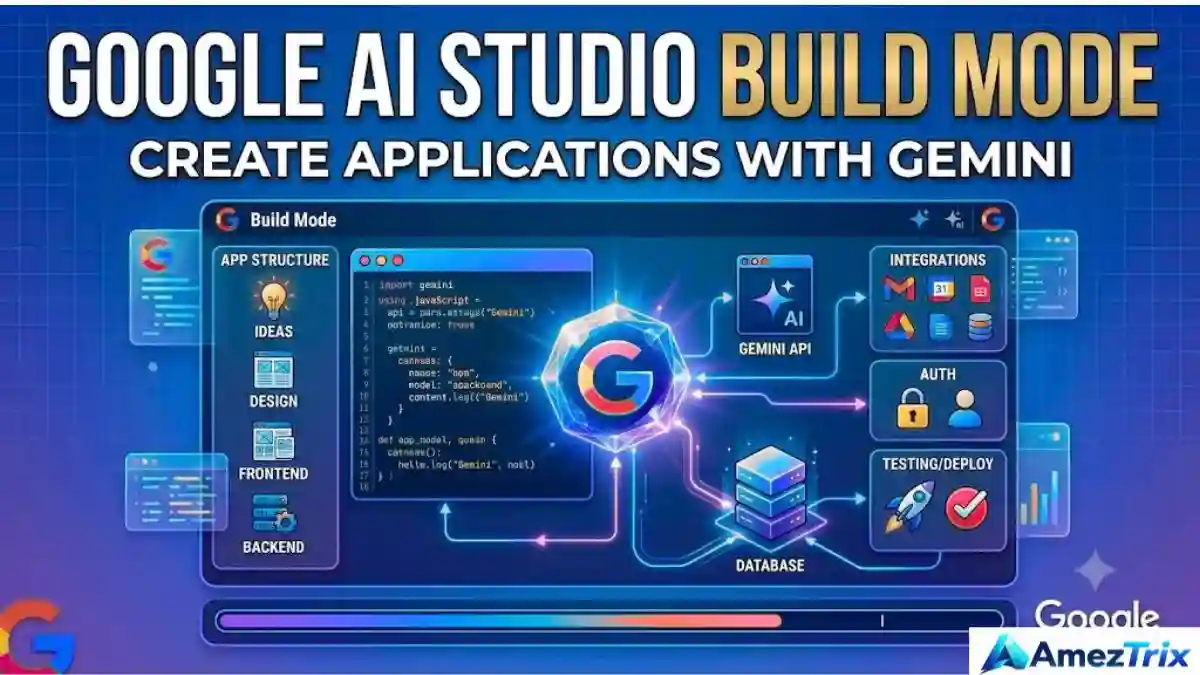
Google AI Studio Build: The Complete Guide to Building AI Apps With Gemini (2026)
Quick answer: Google AI Studio Build is a natural-language app-building environment where Gemini writes, previews, and refines real web and Android applications based on your instructions — no manual coding required to get started.
Ever had an app idea and then immediately felt tired just thinking about the setup? The folders, the boilerplate, the “which framework should I even use” debate with yourself at 1 AM — Google AI Studio Build exists mostly to skip that part.
You describe what you want in plain English. Gemini writes the code, hands you a live preview, and lets you keep nudging it until the app actually behaves the way you pictured it. No blank file staring back at you, no npm install rabbit hole before you’ve even seen a button render.
This guide covers what Build actually is, how it works day-to-day, what you can realistically build with it, how to prompt it well, and where it still falls short. A few opinions are sprinkled in too — some of this genuinely works better than you’d expect, and some of it needs a reality check before you trust it with real users.
What Is Google AI Studio Build?
In one line: it’s an environment inside Google AI Studio where Gemini writes and edits application code based on your instructions, and shows you the result instantly.
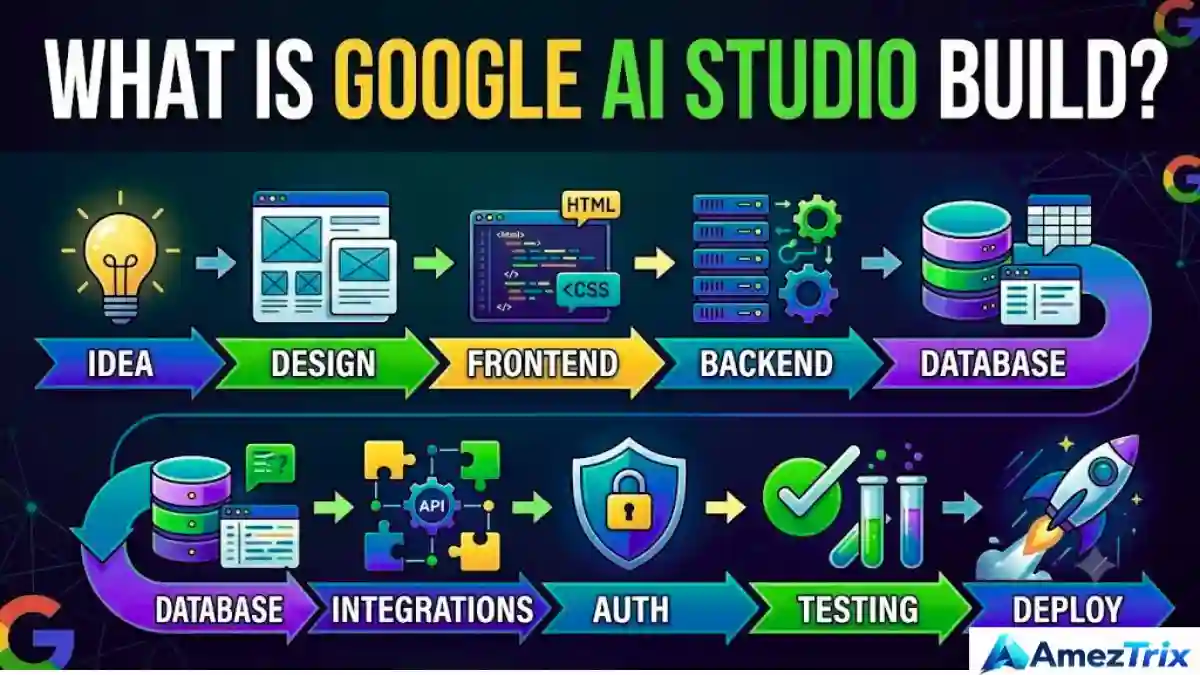
Compare that to the usual path for building software:
Idea → design → frontend → backend → database → integrations → auth → testing → deploy
That’s a lot of steps, and most people quietly give up somewhere around “backend.” Build compresses a good chunk of that into a conversation. Type something like “build a dashboard for tracking daily expenses,” and within seconds there’s a working preview sitting in front of you.
What makes it different from just asking a chatbot for a code snippet? Context. Build works across an entire project — multiple files, connected logic, the whole thing — and remembers what it built last time you asked for a change. It’s less “here’s some code” and more “here’s your app, let’s keep improving it together.”
How Does Build Mode Work?
Build Mode is simply the working interface — the place where you type instructions and watch Gemini act on them in real time.
A typical session looks like this:
Write a prompt → app gets generated → you preview it → you poke around and break something → you tell Gemini what’s wrong → it fixes it → repeat.
Here’s a pattern worth stealing: don’t try to describe your entire app in one giant prompt. Start small.
Create a responsive AI-powered SEO content analyzer.
Then build on it, one instruction at a time:
Add keyword density analysis.” “Add an SEO score based on multiple factors.” “Give it a dashboard with charts.
Small steps mean small failures. If something breaks after step three, you know exactly where to look. Dump everything into one massive prompt, and good luck figuring out which sentence caused the bug.
How to Build an App by AI- Step-by-Step: Building Your First App
Step 1 — Describe the idea properly
“Make an AI website” gets you a generic mess. Be specific instead: who’s using it, what problem it solves, what it needs to store, whether login is required, and roughly how it should look.
The clearer you are here, the less back-and-forth you’ll need later. This step matters more than most people expect.
Step 2 — Gemini builds it
For web apps, Build typically works with a React frontend and a Node.js server-side runtime. You get a proper multi-file project structure — not one giant tangled file.
Step 3 — Preview and actually test it
Click through the live preview. Try the forms, check mobile view, submit bad input on purpose, and see if it handles it gracefully.
A generated app that looks good on the surface isn’t automatically an app that works well underneath. Test it the way you’d test something a junior developer just handed you — with a healthy bit of suspicion.
Step 4 — Ask for changes
This is where Build genuinely shines. You don’t restart from zero — you just say:
Make the dashboard feel more modern.” “Move the nav into a collapsible sidebar.” “Add loading spinners while Gemini generates a response.
It modifies the existing project instead of throwing it away and starting over.
Key Features at a Glance
| Feature | What It Means for You |
|---|---|
| Natural-language coding | Describe features in plain words; no syntax memorization needed |
| Full-stack support | Server logic, APIs, npm packages, and databases — not just a frontend shell |
| Server-side secrets | API keys never sit exposed in browser JavaScript |
| GitHub integration | Import, push, pull, and continue development locally anytime |
| Firebase support | Firestore and authentication for real user accounts and saved data |
| Google Workspace connections | Pull data from Sheets, generate reports, save to Docs, automate emails |
| Android app generation | Native Kotlin + Jetpack Compose apps, previewed in a browser emulator |
| Cloud Run deployment | A documented path from prototype to a live, hosted application |
What You Can Build (With Examples)
Pretty much anything that fits a “web app or Android app” mold. A few categories that come up constantly:
- Writing tools — article generators, summarizers, rewriting assistants, grammar checkers
- SEO tools — keyword analyzers, content scoring, meta description generators, internal-linking assistants
- Business tools — CRM dashboards, invoicing apps, inventory trackers, support ticket systems
- Education tools — quiz generators, flashcard apps, AI tutors, lesson planners
- Productivity tools — task managers, meeting summarizers, research assistants
None of these are exotic. They’re the kind of apps a small team would normally spend weeks scoping before writing a single line of code.
How to Write Prompts That Work
A vague prompt gets a vague app — that’s just how it goes. A strong Build prompt usually covers:
- Role — “Act as a senior full-stack developer.”
- Goal — what the app is actually for.
- Users — who’s going to use it.
- Features — specific functionality, not just “make it good.”
- UI expectations — modern, mobile-friendly, dashboard-style, whatever you’re picturing.
- Technical requirements — secrets server-side, clean separation of frontend and backend.
- Error handling — what should happen when an API call fails.
A fuller example you can copy and adapt:
Build a production-oriented full-stack web app called AI Content Planner, for bloggers and SEO professionals. Include a responsive dashboard, topic and keyword input, search-intent selection, AI-generated outlines, FAQ generation, meta title/description generation, project history, and user authentication. Keep API credentials server-side, add proper loading states and error handling, and explain the project structure once it’s built.
Notice this describes outcomes, not code. You’re telling Gemini what the app should do for the user — not dictating syntax line by line.
Full-Stack Apps, Databases & Auth
A genuinely full-stack app looks like this underneath: Frontend + Server + API + Auth + Database + External Services.
The server-side piece matters most once private credentials are involved. The flow generally runs: user hits the interface → request goes to the server → server talks to Gemini → response comes back through the server to the user. Exposing an API key directly in frontend code is one of those mistakes that seems harmless right up until it isn’t.
If your app needs to remember anything between sessions — profiles, saved projects, preferences, history — you need a database. The moment multiple users exist, authentication keeps their data separate. Worth double-checking: access controls, data validation, secret management, error handling, and how long you’re actually retaining user data.
Gemini API, Search & Built-In Tools
Gemini handles text generation, multimodal input, structured output, and function calling. For new Gemini API projects, Google’s current documentation points toward the Interactions API as the default starting point.
Built-in tools worth knowing about: Google Search, Google Maps, code execution, and custom function calling. Search grounding is particularly useful wherever your app needs current information rather than whatever the model already “knows” internally — news apps, research tools, anything location-based.
Even so, don’t treat grounded output as automatically correct. Validate it, and make sure your app tells users where the information actually came from.
Android AI App Builder
Build isn’t limited to the web. It also generates native Android projects using Kotlin and Jetpack Compose, previewed through a browser-based emulator — no Android Studio required to get started.
“Build a daily expense tracker with categories, monthly summaries, and local storage” is a reasonable starting prompt. Just remember Android apps don’t get identical server-side capabilities to web apps — some web-side functionality simply isn’t available on native Android yet.
Deployment & Going Live
Once an app is ready, Cloud Run is the documented deployment path from AI Studio. You can also export the code entirely and host it elsewhere.
Before shipping anything real, run through this checklist:
| Check | Why It Matters |
|---|---|
| Environment variables | Prevents config leaks between environments |
| API credentials | Should never be hardcoded or client-visible |
| Authentication flow | Confirms user data stays properly separated |
| Database security | Protects against unauthorized access |
| Rate limits | Avoids surprise costs or throttling under load |
| Error handling | Keeps the app usable when something fails |
| Mobile responsiveness | Most real traffic arrives on a phone |
A prototype that works fine when you’re the only one testing it is a very different thing from an app handling real traffic.
Build vs. Traditional Coding — Comparison Table
| Aspect | Traditional Coding | Google AI Studio Build |
|---|---|---|
| Starting point | Blank editor, manual setup | Natural-language prompt |
| Speed to prototype | Days to weeks | Minutes to hours |
| Skill required upfront | Strong | Basic to moderate |
| Iteration method | Manual code edits | Conversational refinement |
| Best for | Complex, highly custom systems | Prototypes, MVPs, internal tools |
| Review burden | Ongoing throughout | Concentrated at testing/review stage |
The AI-assisted loop is faster for prototypes, no argument there. But it shifts more weight onto testing and review — you’re not writing every line yourself, so being deliberate about checking what got written becomes non-negotiable.
Pricing, Beginners & Common Mistakes
Google AI Studio Build: Is it free?
Pricing and rate limits shift depending on usage tier, and Cloud Billing comes into play once you scale past free-tier limits. Before launching anything meant for real users, check current pricing directly rather than assuming your prototype’s near-zero cost holds at scale.
Good for beginners?
Yes, it lowers the barrier significantly — but “lower barrier” doesn’t mean “no barrier.” Knowing the basics of HTML, JavaScript, APIs, and authentication helps you recognize when something’s broken and roughly why, even if you’re not writing it all yourself.
Common mistakes to avoid:
- Vague prompts (“make a Google AI Tools website”) instead of properly scoped descriptions
- Cramming every feature into one giant prompt instead of building incrementally
- Skipping testing because “the AI probably got it right”
- Leaving API keys exposed in frontend code
- Ignoring cost as token usage and API calls grow
- Treating AI output as a finished, audited product instead of a strong first draft
Frequently Asked Questions
What is Google AI Studio Build?
It’s an AI-assisted development environment where Gemini generates, previews, and modifies real applications from natural-language instructions.
Can it build full-stack web apps?
Yes — including server-side logic, secrets management, databases, and external service connections.
Can it build a Google AI Studio Android app?
Yes, using Kotlin and Jetpack Compose, previewed through a browser-based emulator.
Can it connect to databases?
Yes, including Firebase-related workflows, plus external databases through custom code.
Is Gemini the same thing as Google AI Studio?
No. Gemini is the underlying AI model family. AI Studio is the environment where you build with it. Build Mode is the app-building experience inside that environment.
Do I need coding knowledge to use it?
Not to get started. But debugging, securing, and scaling anything beyond a simple prototype goes far more smoothly with basic technical understanding.
Is it suitable for production apps, or just prototypes?
It can go beyond prototypes, but production readiness depends on your architecture, security review, testing, and deployment configuration—not just what Build generates by default.
Final Verdict
Google AI Studio Build represents a real shift in how app development can start — describe it, generate it, test it, refine it. It’s not magic, and it’s definitely not a one-click “app appears fully finished” button. Think of it as a fast, occasionally brilliant junior developer who still needs review before anything goes live.
For beginners, it’s a genuinely accessible entry point. For experienced developers, it speeds up the repetitive parts of prototyping. For businesses, it’s a low-cost way to test whether an AI-powered workflow is worth building properly before committing real engineering time. The output is only as good as the requirements and prompts you feed it — that part hasn’t changed, and probably never will.
Official Resources
- Google AI Studio Build documentation: https://ai.google.dev/gemini-api/docs/aistudio-build-mode
- Gemini API documentation: https://ai.google.dev/gemini-api/docs
- Full-stack AI Studio development: https://ai.google.dev/gemini-api/docs/aistudio-fullstack
About Author
Rajendra Parmar is the Founder and Editor of AmezTrix, where he covers Artificial Intelligence, Technology, WordPress, Web Hosting, Digital Marketing, Gadgets, and Software. His mission is to simplify complex technology through practical tutorials, honest reviews, and well-researched guides that help readers make smarter digital decisions.